Thursday, January 7, 2016

PowerShell: Funny Tech Support Excuse Website

Jeff Ballard created a funny website titled "The Bastard Operator From Hell Style Excuse Server." We can use his funny tech support responses for our own purposes by extracting them from his site and adding them to our PowerShell script. Here's a snippet that'll create a string variable for your use:

$url = 'http://pages.cs.wisc.edu/~ballard/bofh/bofhserver.pl'
$excuse = ((Invoke-webrequest $url).parsedhtml.getelementsbytagname('font')|select -expandproperty outertext)[-1]

Here's a few $excuse samples:
  • asynchronous inode failure
  • Interference between the keyboard and the chair.
  • HTTPD Error 666 : BOFH was here
  • radiosity depletion
Now you'll have some great excuses to reply back with while you're working on the real problem.


Sunday, January 3, 2016

PowerShell: Download Reddit Photos for Windows Background and/or Screensaver

Microsoft Windows® has the ability to display photos for both your computer desktop background and screensaver.  I like to keep a fresh rotation of photos so I decided to write a dirty script to download highly upvoted photos, ensure they are in landscape orientation, and possess at least a 2048 pixel width.  I'll go through each part of the process.

Note: I mention "dirty" as not all photos will download correctly due to various URL's in each post and not all extraneous URL conditions haven't been cleaned up.  Since most Reddit posters use IMGUR for their photos, I focused on resolving those URLs.  Additionally, I write my code in Notepad, not IME, so it's in an old skool batch file type format.  You can edit it to your liking if your OCD is kicking in.

Let's get started (full script at bottom of this post):

#Pulling the JPG attributes requires a query of the extended file properties.  Here I'm calling the shell so we can query it later.

$shell = new-object -com shell.application

#Using the Reddit API and copying a sample search URL, I've created the JSON query to pull in the posts
#Note that I'm searching the Earthporn subreddit that are one month or less old, increasing my result list to one hundred objects, and each post has a net post score of at least 1500

$images = (invoke-restmethod "https://www.reddit.com/search.json?q=subreddit:earthporn&restrict_sr=&sort=relevance&t=month&limit=100").data.children.data|? score -ge 1500

#I noticed sometimes the Invoke-restmethod would get an SSL error so I check for that and run the command again if the $images count is zero.

if ($images.count -eq 0){$images = (invoke-restmethod "https://www.reddit.com/search.json?q=subreddit:earthporn&restrict_sr=&sort=relevance&t=month&limit=100").data.children.data|? score -ge 1500}

#Change $destination to your photos folder.  I put mine in my Dropbox subfolder so my other computer gets the new photos too.

$destination = "C:\Users\MyUserAccount\Dropbox\Earth"

#Creating a filename list so I don't re-download the same photos

$filecheck = gci $destination|select -expandproperty name

#Now that I loaded $Shell, created a Reddit $images result list for downloading, and pulled the list of existing photo filenames from $destination, I start my $images loop:

foreach ($i in $images){
#Cleaning up the URL and destination file name
$name = (($i.url).split('/')[-1]).replace('?1','')
if ($name -like "*.gif*"){continue}
if (($name -notlike "*.jpg") -and ($name -notlike "*.png")){$name = $name + ".jpg"}
if ($filecheck -contains $name){continue}
$fullname = (($destination + "\" + $name)).replace('?1','')
if ($i.url -like "*http://imgur.com*"){$i.url = ($i.url -replace ('http://imgur.com','https://i.imgur.com')) + ".jpg"}

#Downloading the JPG
if ($i.url -like "*://i.img*"){iwr ($i.url).replace('?1','') -outfile $fullname}
if ($i.url -like "*.staticflickr.com/*"){iwr ($i.url).replace('?1','') -outfile $fullname}
if (($i.url -like "*.jpg") -and ($i.url -notlike "*https://i.img*") -and ($i.url -notlike "*.staticflickr.com/*")){iwr ($i.url).replace('?1','') -outfile $fullname}
[array]$files += "URL: " + $i.url

#Pulling dimension property
$fileinfo = $shell.namespace($destination).parsename($name)
$dimension = $shell.namespace($destination).getdetailsof($fileinfo,31) -replace '[\W]',''

#If dimension field is bogus, replace with temp value so file can be deleted from destination
if ($dimension -notlike "*x*"){$dimension = "2047x1023"}

#Checking for landscape photo with horizontal size at least 2048 pixels
[array]$files += "Dimensions: " + $dimension
$horizontal = [int]$dimension.split('x')[0]
if ($horizontal -lt 2048){remove-item $fullname -force;continue}
$vertical = [int]$dimension.split('x')[-1]
if ($vertical -lt 1024){remove-item $fullname -force;continue}
if ($horizontal -lt ($vertical * 1.3)){remove-item $fullname -force;continue}

#If photo passes all checks, that file name is added to $files
[array]$files += "Success: " + $name
}

#End of loop, posting errors and results to $destination folder
$files|out-file ($destination + "\files.txt")
$error|out-file ($destination + "\errors.txt")


Next, save the script and add it to a Scheduled Task.  I used the following command in the task:
Program name: Powershell.exe
Arguments: -ExecutionPolicy Bypass c:\scripts\RedditBackgrounds.ps1 -windowstyle hidden

Now you'll have a scheduled task which automatically keeps your background and screensaver collection fresh.

Actual script:

$shell = new-object -com shell.application
$images = (irm "https://www.reddit.com/search.json?q=subreddit:earthporn&restrict_sr=&sort=relevance&t=month&limit=100").data.children.data|? score -ge 1500
if ($images.count -eq 0){$images = (irm "https://www.reddit.com/search.json?q=subreddit:earthporn&restrict_sr=&sort=relevance&t=month&limit=100").data.children.data|? score -ge 1500}
$DEarth = "C:\Users\MyuserName\Dropbox\Earth"
$destination = "c:\scripts\earth"
$filecheck = gci $DEarth|select -expandproperty name

foreach ($i in $images){
$name = (($i.url).split('/')[-1]).replace('?1','')
if ($name -like "*.gif*"){continue}
if (($name -notlike "*.jpg") -and ($name -notlike "*.png")){$name = $name + ".jpg"}
if ($filecheck -contains $name){continue}
$fullname = (($destination + "\" + $name)).replace('?1','')
if ($i.url -like "*http://imgur.com*"){$i.url = ($i.url -replace ('http://imgur.com','https://i.imgur.com')) + ".jpg"}
if ($i.url -like "*://i.img*"){iwr ($i.url).replace('?1','') -outfile $fullname}
if ($i.url -like "*.staticflickr.com/*"){iwr ($i.url).replace('?1','') -outfile $fullname}
if (($i.url -like "*.jpg") -and ($i.url -notlike "*https://i.img*") -and ($i.url -notlike "*.staticflickr.com/*")){iwr ($i.url).replace('?1','') -outfile $fullname}
[array]$files += "URL: " + $i.url
$fileinfo = $shell.namespace($destination).parsename($name)
$dimension = $shell.namespace($destination).getdetailsof($fileinfo,31) -replace '[\W]',''
if ($dimension -notlike "*x*"){$dimension = "2047x1023"}
[array]$files += "Dimensions: " + $dimension
$horizontal = [int]$dimension.split('x')[0]
if ($horizontal -lt 2048){remove-item $fullname -force;continue}
$vertical = [int]$dimension.split('x')[-1]
if ($vertical -lt 1024){remove-item $fullname -force;continue}
if ($horizontal -lt ($vertical * 1.3)){remove-item $fullname -force;continue}
[array]$files += "Success: " + $name
}
$files|out-file ($destination + "\files.txt")
$error|out-file ($destination + "\errors.txt")
move-item ($destination + "\*.*") $DEarth -force

Wednesday, October 14, 2015

PowerShell: Remove Windows 7 Telemetry Updates (Windows 10 Privacy Issue)

Windows 10 is violating user privacy.  Microsoft is retrieving too much personalized information about each person using Windows 10.  They've also created similar privacy violating security patches for Windows 7.  The following is a PowerShell script I created to remove the violating "security updates."

#Retrieve all Windows updates
$updates = wmic qfe list /format:csv|convertfrom-csv

#Search through update list and remove each violating update
if ($updates.hotfixid -like "*2990214*"){start-process "c:\windows\system32\wusa.exe" -wait -nonewwindow -argumentlist "/uninstall /kb:2990214 /norestart"}

if ($updates.hotfixid -like "*2952664*"){start-process "c:\windows\system32\wusa.exe" -wait -nonewwindow -argumentlist "/uninstall /kb:2952664 /norestart"}

if ($updates.hotfixid -like "*3021917*"){start-process "c:\windows\system32\wusa.exe" -wait -nonewwindow -argumentlist "/uninstall /kb:3021917 /norestart"}

if ($updates.hotfixid -like "*3022345*"){start-process "c:\windows\system32\wusa.exe" -wait -nonewwindow -argumentlist "/uninstall /kb:3022345 /norestart"}

if ($updates.hotfixid -like "*3035583*"){start-process "c:\windows\system32\wusa.exe" -wait -nonewwindow -argumentlist "/uninstall /kb:3035583 /norestart"}

if ($updates.hotfixid -like "*3068708*"){start-process "c:\windows\system32\wusa.exe" -wait -nonewwindow -argumentlist "/uninstall /kb:3068708 /norestart"}

if ($updates.hotfixid -like "*3075249*"){start-process "c:\windows\system32\wusa.exe" -wait -nonewwindow -argumentlist "/uninstall /kb:3075249 /norestart"}

if ($updates.hotfixid -like "*3080149*"){start-process "c:\windows\system32\wusa.exe" -wait -nonewwindow -argumentlist "/uninstall /kb:3080149 /norestart"}

#End of Script

If you want to automate the hotfix removal process, add a "/quiet" to the argumentlist.  For example: 
if ($updates.hotfixid -like "*3080149*"){start-process "c:\windows\system32\wusa.exe" -wait -nonewwindow -argumentlist "/uninstall /quiet /kb:3080149 /norestart"}

Each security update found will pop-up this first window:

Then it will prompt you to confirm the removal of the update:

Lastly, it removes the update:


After running this script, you'll need to restart your computer. Ensure to hide these updates when Windows Updater wants to add them back into your computer.

Thursday, April 16, 2015

PowerShell: Box.com Drive Mapping via DAV

Thanks to a couple of web articles I found (1,2), I'm now able to connect to my Box.com account as a drive letter.

tl;dr:
net use b: \\dav.box.com@SSL\dav /u:boxuser boxpassword

Whole script:
$password = "your embedded & encrypted Box password"

$pscred = New-Object PSCredential -ArgumentList "yourboxaccount@mail.com", ($password | ConvertTo-SecureString)

#Checking if a DAV connection exists and if not, then creating one and assigning it Drive B:

if (get-psdrive|? {$_.currentlocation -like "Your Box Root Folder\Some Box Subfolder*"}){$drive = get-psdrive|? {$_.currentlocation -like "Your Box Root Folder\Some Box Subfolder*"}|select -expandproperty root}else{net use b: \\dav.box.com@SSL\dav /u:yourboxaccount@mail.com $pscred.getnetworkcredential().Password;$drive = "B:\"}

Now you can use Robocopy instead of "Box Sync" to sync your Box.com data:
robocopy "\\server\share\content" ($drive + "Your Box Root Folder\Some Box Subfolder") /s /e /v
robocopy ($drive + "Your Box Root Folder\Some Box Subfolder") "\\server\share\content" /s /e /v

Sunday, December 28, 2014

PowerShell: Enable PSRemoting Remotely

If you encounter a Windows 7+ domain computer without PSRemoting enabled, there is a way to enable PSRemoting without disturbing the user -- as long as you have local administrator rights on the target computer.  The Enable-PSRemoting command alters two registry key sections.  Extracting these keys from an accessible computer then importing them into the target computer is how we will enable PSRemoting.

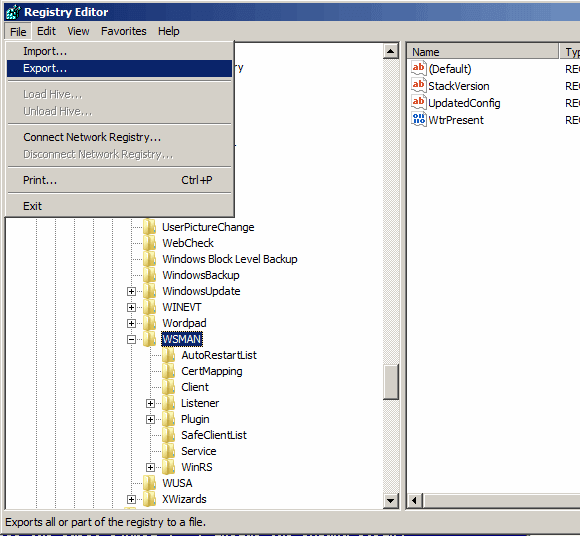
Start by exporting the registry keys on a known working computer.  Use Regedit to export the following keys:

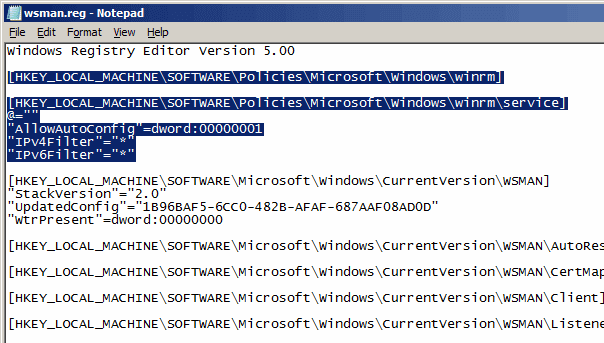
  • HKLM\SOFTWARE\Policies\Microsoft\Windows\winrm\service
  • HKLM\SOFTWARE\Microsoft\Windows\CurrentVersion\WSMAN


Edit each of the exported .reg exported registry files and combine the key information.  Your goal is copying this combined file into the target computers' c:\windows\system32 folder so it can be imported on that computer. Save the file into a network shared location.


Now we need to copy the file onto the target computer.  It must go into the same folder as reg.exe -- which is the c:\windows\system32 folder.  I unsuccessfully tried numerous ways of getting reg.exe to import via a network share.  The only way it would work was to have the registry import file in the same location as the exe.

start-bitstransfer \\server\share\wsman.reg \\$computername\c$\windows\system32 -credential $creds

Next we call on the WinRM service to do our bidding.  First we ask it to start reg.exe process to import the registry file then we'll restart the WinRM service.

invoke-wmimethod -name Create -enableallprivileges:$true -computername $ComputerName -credential $creds -Class Win32_Process -argumentlist "reg.exe import c:\windows\system32\wsman.reg"

invoke-wmimethod -name Create -enableallprivileges:$true -computername $ComputerName -credential $creds -Class Win32_Process -argumentlist "net stop WinRM"

invoke-wmimethod -name Create -enableallprivileges:$true -computername $ComputerName -credential $creds -Class Win32_Process -argumentlist "net start WinRM"

Now test your PSRemoting ability by using:

invoke-computer -computer $computer -credential $creds -scriptblock {get-date}

You've now enabled PSRemoting on the target computer.