I learned how to insert Headers into an Inoke-RestMethod request in order to pull music information from an online database. Afterwards, I can insert the received objects into MP3 ID3 tags using methods mentioned in my previous posts (including album covers). I recently started using Decibel for grabbing music information (even though indications are that they're going to a pay-only API). As of now, they have a free version and two paid versions which allow more information about each query. When you create a free account, you'll be requested to make an application. I called my application "PowerShell." The system generated an Application ID & Key. New to me was having to pass this Application ID, Application Key, and Date/Time via a header request when making my PowerShell queries. After many web searches and trying different script methods, I'm sharing my successful script:
#Replace the x's with your Applications information
#Using an artist like "Fine Young Cannibals" will search for artists
#that have any or all of those three words
$DAppID = "xxxxxxxx"
$DAppKey = "xxxxxxxxxxxxxxxxxxxxxxxxxxxxx"
[string]$DTimeStamp = get-date -format "yyyyMMdd HH:mm:ss"
$Artist = "Metallica"
#Decibel documention
#I requested all albums that have Metallica in the artists name field
$query = invoke-restmethod http://api.decibel.net/v1/albums?artist=$Artist `
-headers @{"DecibelAppID"=$DAppID;"DecibelAppKey"=$DAppKey;"DecibelTimestamp"=$DTimeStamp;} `
-method get
$result = $query.AlbumQueryResult.ResultSet.album
# I filtered for only Metallica album names
foreach ($r in $result){$r.Name|where-object{$r.Artists -eq $Artist}}
Showing posts with label Renaming MP3. Show all posts
Showing posts with label Renaming MP3. Show all posts
Friday, November 8, 2013

Saturday, March 2, 2013
PowerShell: Music Files, Get-Hash, and creating filtered folders
As music files are collected, it can be found that some files will have exact names even though the songs may be different versions. Another problem is getting exact duplicate songs with different file names. I created a script which filters both scenarios and moves one file-hash-based copy of exact files to a new folder structure based on the Artist name -- leaving hash duplicates in the original folders. If a second exact-named but not a hash-duplicate file attempts to move into the Artist's folder, the script makes a subfolder named after the files hash then moves the file to it.
I've only tested this script using PowerShell 3.0.
Disclaimer: This script will create new folders and move files from their original location to new ones. Script errors can result in misnamed files.
I'll explain more as we go over the script:
#Taglib is described in my previous blog
#Click here to learn how to install this ID3 tag utility
$taglib = "C:\PowerShell\taglib\libraries\taglib-sharp.dll"
[system.reflection.assembly]::loadfile($taglib)|out-null
#Select the destination root folder where you want
#your processed files to go. Make sure to leave the
#trailing backslash
$destination = "e:\hash3\"
#The hashtable variable will gather all your music files from the
#current folder and all subfolders and process their hash strings.
#Click here to learn how to install Get-Hash
$hashtable = gci -file -recurse -include *.flac,*.ape,*.ra,*.m4a,*.mp2,*.wma,*.mp3|get-hash
#We add a new Hashtable property for the incoming Artist object and
#assign an empty value "" as placeholder
$hashtable|add-member -membertype noteproperty -name Artist -value ""
#Now we select each file in the hashtable and resolve the
#artists name. If the file is not a valid music file, we
#write the error file name to the console and add it to a
#text file with other invalid files.
foreach ($a in $hashtable){
$fileperformers = $nul
$filealbumartists = $nul
$fileartist = $nul
$albumartist = $nul
#Here's the try/catch for the taglib which is trying to load
#the ID3 file values. If it finds any ID3 errors, it'll move the file to
#an "invalid Audio File"\hash-string subfolder.
try{
$media = [taglib.file]::create($a.path)
}
catch [exception]{
write-host -foregroundcolor "yellow" ($a.path + " - invalid audio file")
$a.path|out-file c:\powershell\hasherrors.txt -append
$fileartist = "Invalid Audio File"
if (!(test-path ($destination+$fileartist+"\"+$a.hash))){md ($destination+$fileartist+"\"+$a.hash+"\")}
move $a.path ($destination+$fileartist+"\"+$a.hash+"\")
}
#We pull the Artist name and filter brackets and untypical characters
$fileartist = $media.tag.performers
if ($fileartist){
$fileartist = $fileartist -replace ("\[","")
$fileartist = $fileartist -replace ("\]","")
$fileartist = $fileartist -replace ("[^0-9a-zA-Z-&\']"," ")
}
#Next we pull the Album Artist name and process it
$albumartist = $media.tag.albumartists
if ($albumartist){
$albumartist = $albumartist -replace ("\[","")
$albumartist = $albumartist -replace ("\]","")
$albumartist = $albumartist -replace ("[^0-9a-zA-Z-&\']"," ")
}
#We see if the performers tag was a real value
#if not, we try to use the album artist value
#if no performer or album artist value, we use "Unknown"
if (!$fileartist){$fileartist = $albumartist}
if (!$fileartist){$fileartist = "Unknown"}
#We enter the result into the added Artist object
$a.Artist =$fileartist
}
#We sort the resulting hash table by unique hashes
#this gives us a list of unique hashes, leaving duplicates
#behind
$hashtable = $hashtable|sort hash -unique
#We create new destination folders, check for exact file names
#in the new folders, and if exist, then create hash-named folders
#and place the file into it
#we also bypass error files which have already been moved
foreach ($h in $hashtable){
if (!(test-path $h.path)){continue}
if (!(test-path ($destination+$h.artist))){md ($destination+$h.artist)}
if ((test-path ($destination+$h.artist+"\"+$h.path.split('\')[-1]))){
md ($destination+$h.artist+"\"+$h.hash)
move $h.path ($destination+$h.artist+"\"+$h.hash)}
if (!(test-path ($destination+$h.artist+"\"+$h.path.split('\')[-1]))){move $h.path ($destination+$h.artist)}
}
I've only tested this script using PowerShell 3.0.
Disclaimer: This script will create new folders and move files from their original location to new ones. Script errors can result in misnamed files.
I'll explain more as we go over the script:
#Taglib is described in my previous blog
#Click here to learn how to install this ID3 tag utility
$taglib = "C:\PowerShell\taglib\libraries\taglib-sharp.dll"
[system.reflection.assembly]::loadfile($taglib)|out-null
#Select the destination root folder where you want
#your processed files to go. Make sure to leave the
#trailing backslash
$destination = "e:\hash3\"
#The hashtable variable will gather all your music files from the
#current folder and all subfolders and process their hash strings.
#Click here to learn how to install Get-Hash
$hashtable = gci -file -recurse -include *.flac,*.ape,*.ra,*.m4a,*.mp2,*.wma,*.mp3|get-hash
#We add a new Hashtable property for the incoming Artist object and
#assign an empty value "" as placeholder
$hashtable|add-member -membertype noteproperty -name Artist -value ""
#Now we select each file in the hashtable and resolve the
#artists name. If the file is not a valid music file, we
#write the error file name to the console and add it to a
#text file with other invalid files.
foreach ($a in $hashtable){
$fileperformers = $nul
$filealbumartists = $nul
$fileartist = $nul
$albumartist = $nul
#Here's the try/catch for the taglib which is trying to load
#the ID3 file values. If it finds any ID3 errors, it'll move the file to
#an "invalid Audio File"\hash-string subfolder.
try{
$media = [taglib.file]::create($a.path)
}
catch [exception]{
write-host -foregroundcolor "yellow" ($a.path + " - invalid audio file")
$a.path|out-file c:\powershell\hasherrors.txt -append
$fileartist = "Invalid Audio File"
if (!(test-path ($destination+$fileartist+"\"+$a.hash))){md ($destination+$fileartist+"\"+$a.hash+"\")}
move $a.path ($destination+$fileartist+"\"+$a.hash+"\")
}
#We pull the Artist name and filter brackets and untypical characters
$fileartist = $media.tag.performers
if ($fileartist){
$fileartist = $fileartist -replace ("\[","")
$fileartist = $fileartist -replace ("\]","")
$fileartist = $fileartist -replace ("[^0-9a-zA-Z-&\']"," ")
}
#Next we pull the Album Artist name and process it
$albumartist = $media.tag.albumartists
if ($albumartist){
$albumartist = $albumartist -replace ("\[","")
$albumartist = $albumartist -replace ("\]","")
$albumartist = $albumartist -replace ("[^0-9a-zA-Z-&\']"," ")
}
#We see if the performers tag was a real value
#if not, we try to use the album artist value
#if no performer or album artist value, we use "Unknown"
if (!$fileartist){$fileartist = $albumartist}
if (!$fileartist){$fileartist = "Unknown"}
#We enter the result into the added Artist object
$a.Artist =$fileartist
}
#We sort the resulting hash table by unique hashes
#this gives us a list of unique hashes, leaving duplicates
#behind
$hashtable = $hashtable|sort hash -unique
#We create new destination folders, check for exact file names
#in the new folders, and if exist, then create hash-named folders
#and place the file into it
#we also bypass error files which have already been moved
foreach ($h in $hashtable){
if (!(test-path $h.path)){continue}
if (!(test-path ($destination+$h.artist))){md ($destination+$h.artist)}
if ((test-path ($destination+$h.artist+"\"+$h.path.split('\')[-1]))){
md ($destination+$h.artist+"\"+$h.hash)
move $h.path ($destination+$h.artist+"\"+$h.hash)}
if (!(test-path ($destination+$h.artist+"\"+$h.path.split('\')[-1]))){move $h.path ($destination+$h.artist)}
}
Sunday, February 24, 2013
PowerShell: ID3 Tag Editing via Taglib-sharp.dll and Discogs API
First of all, I've been searching for a good way to read, manipulate, then write values to the ID3 and other extended file information properties. TagLib is perfect. It integrates easily into scripts and doesn't have any problems other than trying to read a wrongly-named MP3 file. It'll throw an error and I haven't found a way of suppressing or sending the error value to a variable other than to set $erroractionpreference = ignore, which sets the action for the whole script.
(Note: I've created a new script using taglib and get-hash to filter out duplicate files. Click here)
Getting started:
Download the latest taglib: http://download.banshee.fm/taglib-sharp/

Download the most current version and look for the taglib-sharp.dll file in the libraries folder.

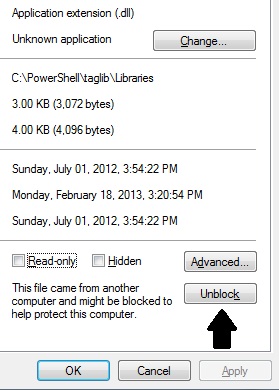
Windows 7+ has security protecting the system from "foreign" dlls. Right-click on the taglib-sharp.dll file and click on the "unblock" button. This will allow you to load the file into PowerShell.
#Create a variable for the tag-lib dll file
$taglib = "C:\PowerShell\taglib\libraries\taglib-sharp.dll"
#Load it into Powershell
[system.reflection.assembly]::loadfile($taglib)
#Find an MP3 and either assign it to a variable or put it's name into the create field
$media = [taglib.file]::create("e:\test\body.mp3")
#Now you can view, edit, and save ID3 information
PS E:\test> $media.properties
Codecs : {TagLib.Mpeg.AudioHeader}
Duration : 00:05:12.3120000
MediaTypes : Audio
Description : MPEG Version 1 Audio, Layer 3
AudioBitrate : 128
AudioSampleRate : 44100
BitsPerSample : 0
AudioChannels : 2
VideoWidth : 0
VideoHeight : 0
PhotoWidth : 0
PhotoHeight : 0
PhotoQuality : 0

PS E:\test> $media.tag
StartTag : TagLib.NonContainer.StartTag
EndTag : TagLib.NonContainer.EndTag
TagTypes : Id3v1, Id3v2
Tags : {, }
Title : Body
Performers : {Bush}
PerformersSort : {}
AlbumArtistsSort : {}
AlbumArtists : {Bush}
Composers : {Gavin Rossdale}
ComposersSort : {}
TitleSort :
AlbumSort :
Album : Sixteen Stone
Comment :
Genres : {Alternative}
Year : 1994
Track : 6
TrackCount : 0
Disc : 1
DiscCount : 1
Lyrics :
Grouping :
BeatsPerMinute : 0
Conductor :
Copyright :
MusicBrainzArtistId :
MusicBrainzReleaseId :
MusicBrainzReleaseArtistId :
MusicBrainzTrackId :
MusicBrainzDiscId :
MusicIpId :
AmazonId :
MusicBrainzReleaseStatus :
MusicBrainzReleaseType :
MusicBrainzReleaseCountry :
Pictures : {}
IsEmpty : False
Artists : {Bush}
FirstArtist : Bush
FirstAlbumArtist : Bush
FirstAlbumArtistSort :
FirstPerformer : Bush
FirstPerformerSort :
FirstComposerSort :
FirstComposer : Gavin Rossdale
FirstGenre : Alternative
JoinedArtists : Bush
JoinedAlbumArtists : Bush
JoinedPerformers : Bush
JoinedPerformersSort :
JoinedComposers : Gavin Rossdale
JoinedGenres : Alternative
PS E:\test> $media.properties.duration
Days : 0
Hours : 0
Minutes : 5
Seconds : 12
Milliseconds : 312
Ticks : 3123120000
TotalDays : 0.00361472222222222
TotalHours : 0.0867533333333333
TotalMinutes : 5.2052
TotalSeconds : 312.312
TotalMilliseconds : 312312
#An example of how I load variables from my music files
$filename = $file.basename
$fileextension = $file.name.split('.')[1]
$filetitle = $media.tag.title
$fileperformers = $media.tag.performers
$filealbumartists = $media.tag.albumartists
$filealbum = $media.tag.album
$filegenres = $media.tag.genres
$fileyear = $media.tag.year
$filetrack = $media.tag.track
$filetrackcount = $media.tag.trackcount
$fileaudiobitrate = $media.properties.audiobitrate
$fileconductor = $media.tag.conductor
$filecomposers = $media.tag.Composers
$fileBPM = $media.tag.BeatsPerMinute
$filedurationminutes = $media.properties.duration.minutes
$filedurationseconds = $media.properties.duration.seconds
$filedurationtotalseconds = $media.properties.duration.totalseconds
#Here's a way to clean the title tag. It cleans the annoying buggy brackets
#then it restricts all characters except the ranges inside the brackets
#Lifted clip explaining some regex expressions:
# Expression:
# ([0-9a-zA-Z\.]+) --> Gets all chars, numbers and '.'. Discard comma and others.
if ($filetitle){
$filetitle = $filetitle -replace ("\[","")
$filetitle = $filetitle -replace ("\]","")
$filetitle = $filetitle -replace ("[^0-9a-zA-Z-&\']"," ")}
#inserting Album Photo:
#(requires PowerShell 3.0 for this album photo catching section)
#To populate the picture tag, I call upon Discogs API via Invoke-Restmethod
#Please refer to the Discogs developer pages for information how to search for your music
#In this example, I used the weighted results and select the first hit for my album search
$filealbum = $media.tag.album
$apialbum = $filealbum -replace (' ','%20')
$albumfound = (invoke-restmethod http://api.discogs.com/database/search?title=$apialbum).results[0]
$thumb = $currentfolder + "\" + $albumfound.thumb.split('/')[-1]
invoke-webrequest -uri $albumfound.thumb -outfile $thumb
$pic = $pic + [taglib.picture]::createfrompath("$thumb")
#writing back to the file
$media.tag.title = [string]$filetitle
$media.tag.performers = [string]$fileperformers
$media.tag.albumartists = [string]$filealbumartists
$media.tag.album = [string]$filealbum
$media.tag.genres = [string]$filegenres
$media.tag.year = $fileyear
$media.tag.track = [string]$filetrack
$media.tag.trackcount = [string]$filetrackcount
$media.tag.conductor = [string]$fileconductor
$media.tag.composers = [string]$filecomposers
$media.tag.BeatsPerMinute = [string]$filebpm
$media.tag.pictures = $pic
$media.save()
References:
http://www.powershell.nu/2009/09/04/scripting-mp3-metadata-through-powershell/
http://vallery.net/2012/04/27/organizing-your-music-with-powershell/
Monday, February 18, 2013
PowerShell: Invoke-RestMethod, API's, and your music collection
Gathering ID3 tag information for your music files has become easier by embracing PowerShell 3's Invoke-RestMethod (IRM) command. Many online databases use Application Programming Interfaces (API's) for developers to access their information. These API's used to use XML but now have moved to the JSON language. IRM embraces JSON and allows us to create these API connections and query information about our music files. In this article, I'm accessing Discogs Creative Commons open-source database.
In my earlier article, I explained how to access shell.application in order to retrieve the extended file properties we use to rename and organize our files. Combined with this method, we'll grab the extended file information and use it to find the correct file information and insert it into our files. One point to make is that the API wants exact query information. You'll receive no information if searching for an artist name of Quean instead of Queen.

Syntax for Discogs allows us to search for song titles, artist names or IDs, album names and their release data plus much more. The following demonstration script is fragile and incomplete. It's to show how we embrace the power of PowerShell 3's Invoke-RestMethod. Become familiar with IRM and API's to pull in online information into your scripts. It'll enhance the CURRENT information you're capable of accessing. I'm really liking PS3's capabilities.
Disclaimer: Use this script at your own risk! You'll be accessing Discogs live database and manipulating your computers music files. This script uses the Windows 7 extended file information numbers.
##Start Script
$shell = new-object -com shell.application
$dirname = (get-item .\).fullname
#A quick and dirty way to find a song to use. Run your script from your music folder
gi .\*.mp3
write "Type the exact (case-sensitive) song title you wish to query"
$fileinput read-host
$filename = gi .\$fileinput.mp3|?{(!($_.psiscontainer))}|foreach-object{$_.name}
$shellfolder = $shell.namespace($dirname).parsename($filename)
#now you can retrieve the extended file information and use those objects for your queries
$songtitle = $shell.namespace($dirname).getdetailsof($shellfolder,21)
$contribartist = $shell.namespace($dirname).getdetailsof($shellfolder,13)
$albumartist = $shell.namespace($dirname).getdetailsof($shellfolder,217)
$album = $shell.namespace($dirname).getdetailsof($shellfolder,14)
$genre = $shell.namespace($dirname).getdetailsof($shellfolder,16)
$year = $shell.namespace($dirname).getdetailsof($shellfolder,15)
$track = $shell.namespace($dirname).getdetailsof($shellfolder,26)
$length = $shell.namespace($dirname).getdetailsof($shellfolder,27)
$bitrate = $shell.namespace($dirname).getdetailsof($shellfolder,28)
$conductors = $shell.namespace($dirname).getdetailsof($shellfolder,17)
$bpm = $shell.namespace($dirname).getdetailsof($shellfolder,218)
$composers = $shell.namespace($dirname).getdetailsof($shellfolder,219)
#An example of how to replace spaces for your online queries. %20 is the variable used for space.
$apicontribartist = $contribartist -replace (' ','%20')
$apisongtitle = $songtitle -replace (' ','%20')
#Every artist in their database has an ID. We query to find the ID.
$artistid = (irm http://api.discogs.com/artist/$apicontribartist).resp.artist.id
#We use the Artist ID to find the song's original release date. Master is the keyword for original recording.
if ((invoke-restmethod http://api.discogs.com/database/search?artist=$artistid"&"type=master"&"title=$songtitle).results){
$origdate = ((invoke-restmethod http://api.discogs.com/database/search?artist=$artistid"&"type=master"&"title=$songtitle).results.resource_url|select -unique -first 1|%{invoke-restmethod $_}).year}else{
$origdate = ((invoke-restmethod http://api.discogs.com/database/search?artist=$apicontribartist"&"track=$songtitle).results.year)|sort|select -first 1}
#type $tags to see the file properties
#type $tags.tag to see the extended file properties
#I'll let you take it from here :-)

 |
| Original Extended File Information |
 |
| Updated after IRM and Discog's API |
In my earlier article, I explained how to access shell.application in order to retrieve the extended file properties we use to rename and organize our files. Combined with this method, we'll grab the extended file information and use it to find the correct file information and insert it into our files. One point to make is that the API wants exact query information. You'll receive no information if searching for an artist name of Quean instead of Queen.
Disclaimer: Use this script at your own risk! You'll be accessing Discogs live database and manipulating your computers music files. This script uses the Windows 7 extended file information numbers.
##Start Script
$shell = new-object -com shell.application
$dirname = (get-item .\).fullname
#A quick and dirty way to find a song to use. Run your script from your music folder
gi .\*.mp3
write "Type the exact (case-sensitive) song title you wish to query"
$fileinput read-host
$filename = gi .\$fileinput.mp3|?{(!($_.psiscontainer))}|foreach-object{$_.name}
$shellfolder = $shell.namespace($dirname).parsename($filename)
#now you can retrieve the extended file information and use those objects for your queries
$songtitle = $shell.namespace($dirname).getdetailsof($shellfolder,21)
$contribartist = $shell.namespace($dirname).getdetailsof($shellfolder,13)
$albumartist = $shell.namespace($dirname).getdetailsof($shellfolder,217)
$album = $shell.namespace($dirname).getdetailsof($shellfolder,14)
$genre = $shell.namespace($dirname).getdetailsof($shellfolder,16)
$year = $shell.namespace($dirname).getdetailsof($shellfolder,15)
$track = $shell.namespace($dirname).getdetailsof($shellfolder,26)
$length = $shell.namespace($dirname).getdetailsof($shellfolder,27)
$bitrate = $shell.namespace($dirname).getdetailsof($shellfolder,28)
$conductors = $shell.namespace($dirname).getdetailsof($shellfolder,17)
$bpm = $shell.namespace($dirname).getdetailsof($shellfolder,218)
$composers = $shell.namespace($dirname).getdetailsof($shellfolder,219)
#An example of how to replace spaces for your online queries. %20 is the variable used for space.
$apicontribartist = $contribartist -replace (' ','%20')
$apisongtitle = $songtitle -replace (' ','%20')
#Every artist in their database has an ID. We query to find the ID.
$artistid = (irm http://api.discogs.com/artist/$apicontribartist).resp.artist.id
#We use the Artist ID to find the song's original release date. Master is the keyword for original recording.
if ((invoke-restmethod http://api.discogs.com/database/search?artist=$artistid"&"type=master"&"title=$songtitle).results){
$origdate = ((invoke-restmethod http://api.discogs.com/database/search?artist=$artistid"&"type=master"&"title=$songtitle).results.resource_url|select -unique -first 1|%{invoke-restmethod $_}).year}else{
$origdate = ((invoke-restmethod http://api.discogs.com/database/search?artist=$apicontribartist"&"track=$songtitle).results.year)|sort|select -first 1}
#Locate Original Album hosting the audio track by using the
#artist ID, releases, master, and date.
$master = ((irm http://api.discogs.com/artists/$artistid/releases).releases|?{$_.year -eq $origdate -and $_.type -eq "Master"})
$master = $master[0]
$origalbum = (irm $master.resource_url).title
#Now we can use the master album the song appeared on to find additional song information
#We find track number, released on Vinyl, 45, CD, etc., and I like to combine the styles and genres
#& is a reserved PowerShell character. We wrap it "&" so it will be passed to Discogs.
$origtracknumber = 1 + (((irm ((irm http://api.discogs.com/database/search?artist=$apicontribartist"&"title=$origalbum"&"track=$songtitle"&"year=$origdate"&"type=master).results).resource_url).tracklist|?{$_.title -eq $songtitle}).position.count)
$origformat = ((irm http://api.discogs.com/database/search?artist=$apicontribartist"&"title=$origalbum"&"track=$songtitle"&"year=$origdate"&"type=master).results)
$origformat = ((irm http://api.discogs.com/database/search?artist=$apicontribartist"&"title=$origalbum"&"track=$songtitle"&"year=$origdate"&"type=master).results).label|select -first 1
$origstyles = (irm ((irm http://api.discogs.com/database/search?artist=$apicontribartist"&"title=$origalbum"&"track=$songtitle"&"year=$origdate"&"type=master).results).resource_url).styles
$origgenres = (irm ((irm http://api.discogs.com/database/search?artist=$apicontribartist"&"title=$origalbum"&"track=$songtitle"&"year=$origdate"&"type=master).results).resource_url).genres
#I combined the styles and genre information so I can create better
#future genre searches.
$origgenre = ($origstyles + $origgenres)|sort
#write the updates back to the original file
#Try taglib for inserting tags back into your audio file.
#Here's a site which goes over some of its abilities.
#For Windows 7, when you download taglib, find the taglib-sharp.dll
#file, right-click it, select properties, and "unblock" it so you can load
#the DLL into your ref.assembly command
$taglib = "c:\powershell\taglib\libraries\taglib-sharp.dll"
[system.reflection.assembly]::loadfile($taglib)
$tags = [taglib.file]::create($filename)
#Here's a site which goes over some of its abilities.
#For Windows 7, when you download taglib, find the taglib-sharp.dll
#file, right-click it, select properties, and "unblock" it so you can load
#the DLL into your ref.assembly command
$taglib = "c:\powershell\taglib\libraries\taglib-sharp.dll"
[system.reflection.assembly]::loadfile($taglib)
$tags = [taglib.file]::create($filename)
#type $tags to see the file properties
#type $tags.tag to see the extended file properties
#I'll let you take it from here :-)
##End Script
Friday, February 15, 2013
PowerShell: Clean & Manage Music Files
Disclaimer: USE THIS AT YOUR OWN RISK! This script is made for Windows 7! There will be file renaming and moving so TEST, TEST, TEST. You can test this script by copying one folder of music into an empty folder then run the script in that folder. It will only process the files in that folder. If all goes well, all files will move into a new folder structure named Music on your desktop.
To run this or any other PowerShell script, you'll have to read up on the Get-Executionpolicy and Set-Executionpolicy as PowerShell disables scripts by default.
My previous article explained how to clean the extra "stuff" added to music file names. This article further cleans those file names, gets rid of the troublesome [brackets], then uses the Genre, Artist, and Album information to create a new folder structure on your desktop. You can then move it to wherever you store your music.

 I performed a search for all files to display the name changes. Notice the subfolder structure that each file is located in. The left side is the Genre structure created based on the file information.
Three more notes before going through the script:
To run this or any other PowerShell script, you'll have to read up on the Get-Executionpolicy and Set-Executionpolicy as PowerShell disables scripts by default.
My previous article explained how to clean the extra "stuff" added to music file names. This article further cleans those file names, gets rid of the troublesome [brackets], then uses the Genre, Artist, and Album information to create a new folder structure on your desktop. You can then move it to wherever you store your music.
Here is an example of some files my friend wanted help managing:
Notice the brackets, curly brackets, and other special characters in the file names and properties.
This is the same folder of music files after running the script:
Three more notes before going through the script:
- The script automatically ignores subfolders. I strongly recommend you perform this move one folder at a time so you can ensure it worked properly.
- The script will process any type of file. You'll have to create an -exclude in the top $filename variable if you want it to ignore JPG's, AVI's, and etc.
- Do not save this script to the folder you are processing. It will be moved into the Music folder and could cause problems.
## Start of Script
#We call the Shell Object
$shell = new-object -com shell.application
#Organized Music Folder Location
#You can change the location. The Music Root Folder defaults to your desktop
$MusicFolder = ($home + '\desktop\music')
#remove brackets from filenames per PowerShells bug with brackets
gci .\* |?{(!($_.psiscontainer))}|foreach{move -literalpath $_ ($_.name -replace ('\[|]','~'))}
#Set directory and file variables. Add -exclude to the Get-Item if you want
#to ignore other filetypes
#For instance: (get-item .\* -exclude *.avi,*.jpg)
$dirname = (get-item .\).fullname
$filename = (get-item .\*)|?{(!($_.psiscontainer))}|foreach-object{$_.name}
foreach($file in $filename){
#original filename holder, then split it to capture the extension and name only.
$fileholder = $file
$ext = ('.' + ($file.split('.')[-1]))
$noext = $file.trimend($ext)
#get Title (item number 21) property from the file
$shellfolder = $shell.namespace($dirname).parsename($file)
$title = $shell.namespace($dirname).getdetailsof($shellfolder,21)
#PowerShell filename bug for brackets.
#If there's a bracket in the title, $title will equal nul
if ($title -like "*``[*" -or $title -like "*``]*"){$title = $nul}
#if the title isn't empty, replace the filename with it
if ($title -gt 0){$file = ($title + $ext)}
#clean extraneous characters from the filename
#BTW, let me know if you have a better way to filter files
#for now, I borrowed this filter technique:
$file2 = $file -replace ('^[0-100]','')
$file3 = $file2 -replace ('.mp33','.mp3')
$file4 = $file3 -replace (' - ','-')
$file5 = $file4 -replace (' ',' ')
$file6 = $file5 -replace (' ',' ')
$file7 = $file6 -replace ('\(','')
$file8 = $file7 -replace (':','')
$file9 = $file8 -replace ('\)','')
$file10 = $file9 -replace ('\/','')
$file11 = $file10 -replace ('\>','')
$file12 = $file11 -replace ('\<','')
#Split the filename at the hyphen and only keep the last portion
#since that's normally the song name
$file13 = $file12.split('-')[-1]
$finalfilename = $file13
#rename the file after all the modifications
ren -erroraction silentlycontinue -path ($dirname + '\' + $fileholder) -newname $finalfilename
$shellfolder = $shell.namespace($dirname).parsename($finalfilename)
#Filtering for Artist - Items 13 and 217
$contribartist = $shell.namespace($dirname).getdetailsof($shellfolder,13)
$albumartist = $shell.namespace($dirname).getdetailsof($shellfolder,217)
#filtering the Album Name - Item 14
$album = $shell.namespace($dirname).getdetailsof($shellfolder,14)
$album1 = $album -replace ('^[0-100]','')
$album2 = $album1 -replace ('.mp33','.mp3')
$album3 = $album2 -replace (' - ','-')
$album4 = $album3 -replace (' ',' ')
$album5 = $album4 -replace (' ',' ')
$album6 = $album5 -replace ('\(','')
$album7 = $album6 -replace (':','')
$album8 = $album7 -replace ('\)','')
$album9 = $album8 -replace ('\/','')
$album10 = $album9 -replace ('\>','')
$album11 = $album10 -replace ('\<','')
$finalalbumname = $album11
#filtering the genre name - Item 16
$genre = $shell.namespace($dirname).getdetailsof($shellfolder,16)
$genre1 = $genre -replace ('^[0-100]','')
$genre2 = $genre1 -replace ('.mp33','.mp3')
$genre3 = $genre2 -replace (' - ','-')
$genre4 = $genre3 -replace (' ',' ')
$genre5 = $genre4 -replace (' ',' ')
$genre6 = $genre5 -replace ('\(','')
$genre7 = $genre6 -replace (':','')
$genre8 = $genre7 -replace ('\)','')
$genre9 = $genre8 -replace ('\/','')
$genre10 = $genre9 -replace ('\>','')
$genre11 = $genre10 -replace ('\<','')
$finalgenrename = $genre11
#Deciding between Album and Contributing artist then cleaning the name
$artist = if ($contribartist -gt 0){$contribartist}else{$albumartist}
$artist1 = $artist -replace ('^[0-100]','')
$artist2 = $artist1 -replace ('.mp33','.mp3')
$artist3 = $artist2 -replace (' - ','-')
$artist4 = $artist3 -replace (' ',' ')
$artist5 = $artist4 -replace (' ',' ')
$artist6 = $artist5 -replace ('\(','')
$artist7 = $artist6 -replace (':','')
$artist8 = $artist7 -replace ('\)','')
$artist9 = $artist8 -replace ('\/','')
$artist10 = $artist9 -replace ('\>','')
$artist11 = $artist10 -replace ('\<','')
$finalartistname = $artist11
$filetrim = $finalfilename.trimend($ext)
$filedupeinsert = ($filetrim + 'DUPE')
$filedupe = ($filedupeinsert + $ext)
#move file based on its Genre, Artist, and Album
#Replacing Brackets for tildes
if ($finalgenrename -like "*``[*" -or $finalgenrename -like "*``]*"){$finalgenrename -replace ('\[|]','~')}
if ($finalalbumname -like "*``[*" -or $finalalbumname -like "*``]*"){$finalalbumname -replace ('\[|]','~')}
if ($finalartistname -like "*``[*" -or $finalartistname -like "*``]*"){$finalartistname -replace ('\[|]','~')}
#moving songs to folders
#If there's no Genre entry, a default is used
#For the sake of endless genre possibilities, I used this filter to group
#the various types. Manipulate as you see fit:
if ($finalgenrename -like "*Rock*"){$finalgenrename = "Rock"}
if ($finalgenrename -like "*Alt*"){$finalgenrename = "Alternative"}
if ($finalgenrename -like "*Metal*"){$finalgenrename = "Metal"}
if ($finalgenrename -like "*Pop*"){$finalgenrename = "Pop"}
if ($finalgenrename -like "*Rap*"){$finalgenrename = "Rap"}
if ($finalgenrename -like "*Hip*"){$finalgenrename = "Hip-Hop"}
if ($finalgenrename -like "*R&B*"){$finalgenrename = "R&B"}
if (!($finalgenrename -gt 0)){$finalgenrename = "Genre"}
#If there's no Album entry, a default is used
if (!($finalalbumname -gt 0)){$finalalbumname = "Album"}
#Creating the desktop\music folder structure
#and moving files to their new folders
if (!(dir $MusicFolder\$finalgenrename -erroraction silentlycontinue)){md $MusicFolder\$finalgenrename -force}
if (!(dir $MusicFolder\$finalgenrename\$finalartistname -erroraction silentlycontinue)){md $MusicFolder\$finalgenrename\$finalartistname -force}
if (!(dir $MusicFolder\$finalgenrename\$finalartistname\$finalalbumname -erroraction silentlycontinue)){md $MusicFolder\$finalgenrename\$finalartistname\$finalalbumname -force}
if (dir $MusicFolder\$finalgenrename\$finalartistname\$finalalbumname\$finalfilename -erroraction silentlycontinue){move -erroraction silentlycontinue ($dirname + '\' + $finalfilename) -destination $MusicFolder\$finalgenrename\$finalartistname\$finalalbumname\$filedupe}else{move -erroraction silentlycontinue ($dirname + '\' + $finalfilename) $MusicFolder\$finalgenrename\$finalartistname\$finalalbumname\$finalfilename -force}
}
## End of Script
Sunday, February 10, 2013
PowerShell: Cleaning up Music File Names
I've been helping a friend manage his plethora of digital music. Anyone who's acquired music has noticed the many ways filenames have been created. Since Windows can display extra columns of information that coincide with MP3 tags, he decided the song names should be the filenames as the files would stay in the Artist/Album folders.
Here's a sample of the files original names:

After much research, I found the Title tag was usually a cleaner file name source than the actual file name. I also noticed that hyphens were used a bunch and the section after the last hyphen was the song's name. I used these two findings combined with character filters to come up with this:

PowerShell versions 1 and 2 balk at the [brackets] in a filename unless you perform some trickery. PowerShell 3 has overcome this limitation -- but I'm using PS 2.0 for this script. The script is not perfect but at least gets you in the general area. The script does NOT -recurse (trickle down subfolders) since it's best to check your progress one folder at a time.
Here is the script if you'd like to give it a shot. Place the .PS1 file with your other scripts and run it from the music folder to be affected.
$shell = new-object -com shell.application
$dirname = (get-item .\).fullname
$filename = (get-item .\*)|foreach-object{$_.name}
foreach($file in $filename){
#original filename holder
$fileholder = $file
#get the songs Title (item number 21 (if it exists)) property from the file
$shellfolder = $shell.namespace($dirname).parsename($file)
$title = $shell.namespace($dirname).getdetailsof($shellfolder,21)
#if the title isn't empty, use it for the filename.
#Note: This is specifically for MP3's; you'd have to add other lines for
#other music file extensions
if ($title -gt 0){$file = ($title + '.mp3')}
#clean extraneous characters from the filename
#experiment by adding filters which serve you best
$file2 = $file -replace ('^[0-100]','')
$file3 = $file2 -replace ('.mp33','.mp3')
$file4 = $file3 -replace (' - ','-')
$file5 = $file4 -replace (' ',' ')
$file6 = $file5 -replace (' ',' ')
$file7 = $file6 -replace ('\(','')
$file8 = $file7 -replace ('\)','')
#Split the filename at the hyphen and only keep the last portion
#since that's normally the song name. -1 means get the last one.
$file9 = $file8.split('-')[-1]
#rename the file after all the modifications
rename-item -path ($dirname + '\' + $fileholder) -newname $file9
}
Here's a sample of the files original names:
After much research, I found the Title tag was usually a cleaner file name source than the actual file name. I also noticed that hyphens were used a bunch and the section after the last hyphen was the song's name. I used these two findings combined with character filters to come up with this:
PowerShell versions 1 and 2 balk at the [brackets] in a filename unless you perform some trickery. PowerShell 3 has overcome this limitation -- but I'm using PS 2.0 for this script. The script is not perfect but at least gets you in the general area. The script does NOT -recurse (trickle down subfolders) since it's best to check your progress one folder at a time.
Here is the script if you'd like to give it a shot. Place the .PS1 file with your other scripts and run it from the music folder to be affected.
$shell = new-object -com shell.application
$dirname = (get-item .\).fullname
$filename = (get-item .\*)|foreach-object{$_.name}
foreach($file in $filename){
#original filename holder
$fileholder = $file
#get the songs Title (item number 21 (if it exists)) property from the file
$shellfolder = $shell.namespace($dirname).parsename($file)
$title = $shell.namespace($dirname).getdetailsof($shellfolder,21)
#if the title isn't empty, use it for the filename.
#Note: This is specifically for MP3's; you'd have to add other lines for
#other music file extensions
if ($title -gt 0){$file = ($title + '.mp3')}
#clean extraneous characters from the filename
#experiment by adding filters which serve you best
$file2 = $file -replace ('^[0-100]','')
$file3 = $file2 -replace ('.mp33','.mp3')
$file4 = $file3 -replace (' - ','-')
$file5 = $file4 -replace (' ',' ')
$file6 = $file5 -replace (' ',' ')
$file7 = $file6 -replace ('\(','')
$file8 = $file7 -replace ('\)','')
#Split the filename at the hyphen and only keep the last portion
#since that's normally the song name. -1 means get the last one.
$file9 = $file8.split('-')[-1]
#rename the file after all the modifications
rename-item -path ($dirname + '\' + $fileholder) -newname $file9
}
Thursday, January 31, 2013
PowerShell: Removing First 3 Characters from Filenames of Parent and Subfolders
I found several examples of renaming files but this one is simple and easy to change.
gci -include *.txt -recurse|ren -newname {($_.name).substring(3)}
Note: no carriage return, this is a single command
Note: Doesn't like spaces in the filenames
Run this command from the parent folder and it'll rename all the file types in the folder and all subfolders. The only limitation I found is special characters in the folder or filename.
Subscribe to:
Posts (Atom)